CC-Switch Setup
CC-Switch is a graphical multi-provider switcher that lets you manage and switch the API provider for Claude Code / Codex / Gemini with one click. Compared with editing config files by hand, it's more beginner-friendly.
Prerequisites
- You've obtained a CQT AI APIKey (created in the console under "APIKey Management").
- You've installed the corresponding CLI (e.g. Claude Code) and installed CC-Switch.
Step 1: Open CC-Switch
Open CC-Switch, select the type to configure at the top (Claude / Codex / Gemini), and click + (add provider) in the top-right corner.
Step 2: Add the CQT AI provider
In the "Add new provider" form, follow the three steps below as shown:
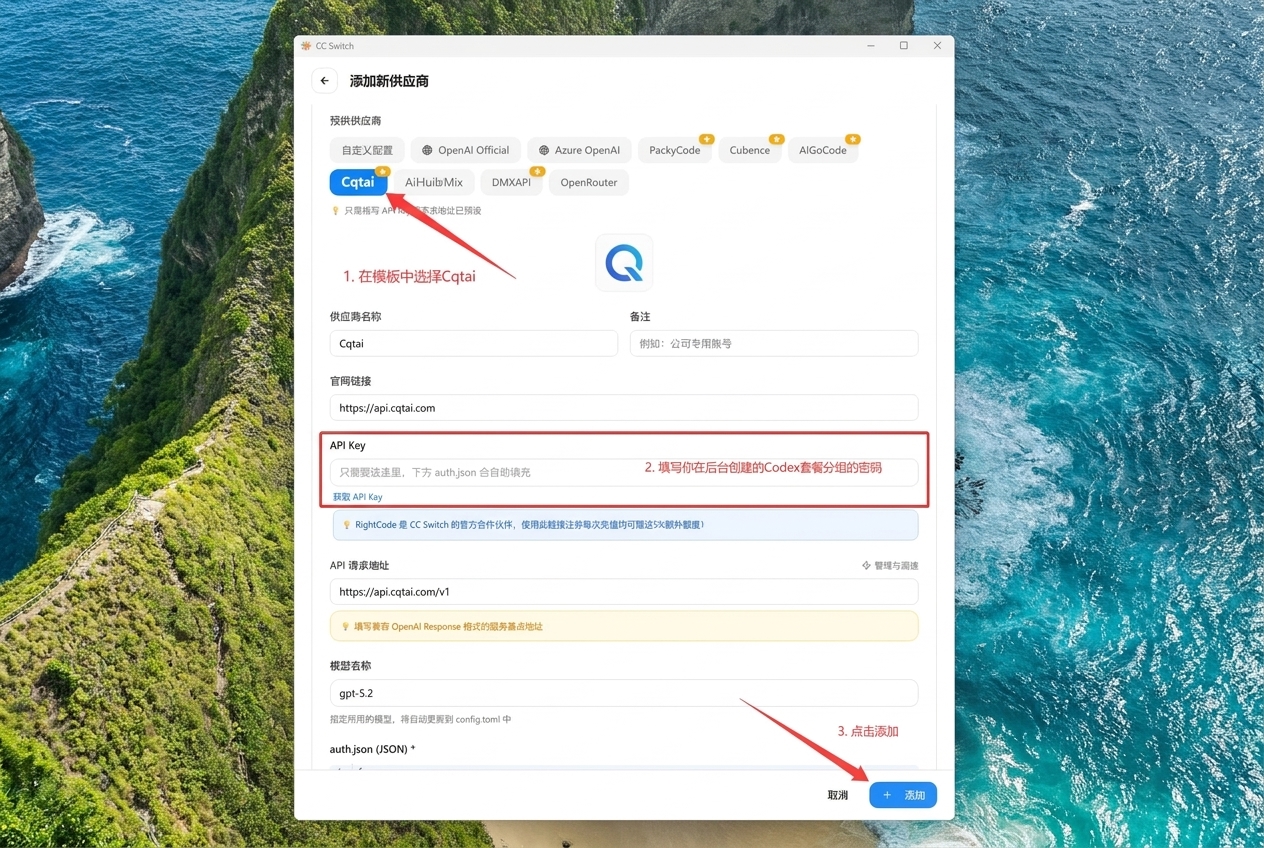
- Select the
Cqtaipreset provider template (in the template area at the top; selecting it auto-fills the website link and channel address). - Enter the APIKey you created in the console (in the API Key field).
- Click "Add" in the bottom-right corner.
Form field reference:
| Field | Value |
|---|---|
| Provider name | Cqtai (custom, for easy identification) |
| Website link | https://api.cqtai.com |
| API Key | The APIKey you created in the console |
| API channel URL | https://api.cqtai.com/v1 |
| Model name | e.g. gpt-5.2 (fill in as needed) |
For Claude / Codex / Gemini types, switch at the top and add the provider for each separately.
Step 3: Save and switch
After saving, select CQT AI in the list so it shows the "Currently Using" status to take effect.
Step 4: Verify
Open a terminal and run the corresponding CLI (e.g. claude), then chat to test that it routes through CQT AI.
FAQ
- Switch doesn't take effect: Confirm the provider is marked "Currently Using" and reopen the terminal.
- 401 authentication failed: Check the API Key is correct with no extra spaces, and confirm the APIKey isn't disabled.
- Connection failed: Confirm the Base URL is correct (Claude uses
https://api.cqtai.com).